Face Recognition Demonstration
Starting
After starting executable file “faces1.exe” you can use demo in two modes: automatic and manual.
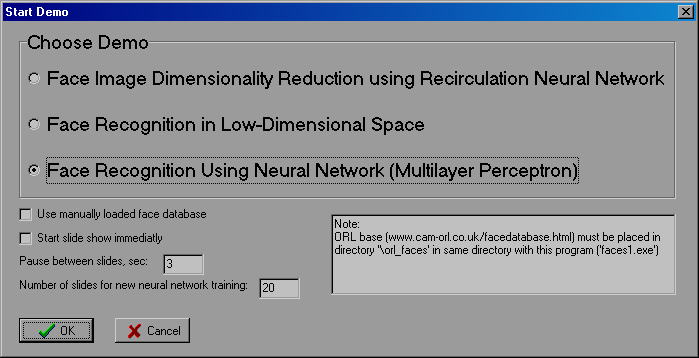
ORL face database (www.cam-orl.co.uk/facedatabase.html) must be placed in directory “\orl_faces” in the same folder with program file “faces1.exe”. To start demo choose from menu items “Demo” and then “Start”. Starting form with initial parameters will appear.
You can choose one of three demos:
Also you can use manually loaded face database instead of ORL face database. To do this, load manually your face database and check option “Use manually loaded face database”. See chapter “Loading face database” for details.
Automatic demo has slide mode. For use this ability immediately after starting demo with no manual interaction check option “Start slide show immediately”. In slide mode neural network is trained after starting demo and slideshow begins. Each slide represents example of neural network training, total recognition error or example of image recognition or reconstruction. Face image is chosen randomly. For first demo it can be both from training and test set, for other two it will be only from training set.
Parameter “Pause between slides” allows you adjust time between slides. Note that slide, showing result of neural network training (total recognition or reconstruction error), will be ten times longest than other slides.
Parameter “Number of slides for new neural network training” allows you set number of slides after which the new division of face database on training and test set will be done and neural network will be reinitialized and trained again.
To start automatic demo press “OK” button. Demo form will appear.
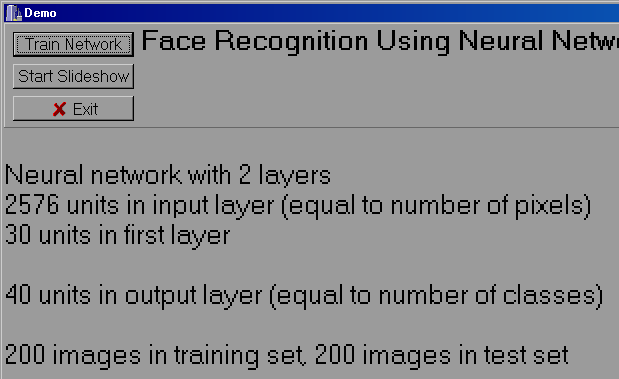
It has three buttons.
Press button “Train Network” to train network. When training process over, this button will be renamed to “Recognize” or “Reconstruct” depending on kind of demo. Pressing “Recognize”/“Reconstruct” will give new example of recognition or reconstruction.
Button “Start/Stop slideshow” allows you to interrupt or restart slideshow.
Press “Exit” button to return to main form.
Face Image Dimensionality Reduction using Recirculation Neural Network
This demo shows how face image dimension can be reduced. Source face image space is formed by n-dimensional vector in which each dimension represented by corresponding pixel, and brightness of pixel sets position on axis of dimension. n equals to the number of pixels in image.
Image compression and reconstruction performed by Recirculation Neural Network (RNN). RNN is a kind of Multilayer Perceptron which is trained to reconstruct input image on its output layer through small number of hidden units.
Output of hidden units is forming compressed image representation and reminds principal components.
Advantages of such approach is that RNN training process is quite fast and has no problems inherent when solving matrix equations. For details see “Bryliuk D., Starovoitov V. Application of Recirculation Neural Network and Principal Component Analysis for Face Recognition // The 2nd International Conference on Neural Networks and Artificial Intelligence. - Minsk: BSUIR, 2001. - P.136-142.”
Face Recognition in Low-Dimensional Space
In this demo recognition in reduced face image space is shown. How dimensionality reduction is achieved you can see from previous demonstration. New m-dimensional space is formed by output of m hidden units of RNN. Each units corresponds to axis in reduced space, and output value of unit sets position on this axis.
Recognition is preformed by calculating Euclidean distance in low-dimensional space from unknown image to all images is training set. Image with minimal distance considered as closest and indicates recognized class.
Face Recognition Using Neural Network (Multilayer Perceptron)
This demo shows the ability of Multilayer Perceptron (MLP) to recognize face images. Input of MLP is brightness of all pixels of image, and number of input units is equal to number of pixels. You can also choose another image representation (cosine or Fourier transform coefficients, see “Choosing image representation” for details). Number of output units corresponds to the number of classes. Each output unit is trained to give output value “+1” for own class and “-1” for all foreign classes. After training output of such units will be in range [-1; +1].
Choosing class with highest output value of corresponding output unit performs recognition.
As you can see from this demo, MLP gives highest recognition rate than previous demo. Also MLP gives good distinctiveness between classes, when in previous demo correct and wrong classes may be close and mixed. It means that in most cases for particular image one of the output units indicates value close to “+1”, and other units indicates values close to “-1”. This fact allows implementation of different heuristics in order to use MLP in access control systems. One of such heuristics, called “Rejection threshold” implemented in this demo. Value of threshold can be settled from “NN Params” sheet on main form during demo. Its range from “-1” to “+1”. Image, for which highest output of MLP is less than rejection threshold considered as unknown to MLP and rejected.
Loading face database
You can also use another face database and another division on training and test set. Press  button to bring up open dialog.
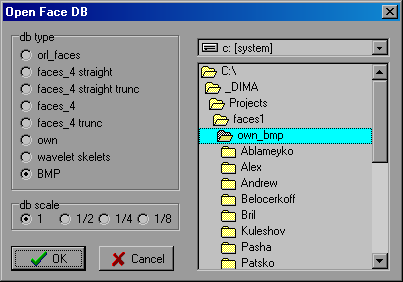
Here you can choose location of database, scale of image and image type. Please choose “BMP” type for your face database. In your database you can use grayscale BMP images of one size. Face images must be preprocessed on ORL manner: no big changes of pose, scale or lightning conditions, face must be approximately in the center of image. Structure of folders also must be in ORL manner: one main folder that contains subfolders, corresponding to each class. Each subfolder contains images for particular class.
Maximum classes for this demo must not exceed 50. Maximal number of samples per class – 30 (15 when using mirroring). Maximum number of pixels – 10304 (i.e. resolution about 100x100).
To speed up training process you can choose reduced face image scale. For example when “db scale” is set to “1/2” face images with original resolution 100x100 will have resolution 50x50 and so on.
This demo also contains our small face database containing 20 persons. It is placed in “own_bmp” folder. You can use it for demonstrational purposes.
Changing division on training and test set
By default face database is randomly divided on training and test set. Both of sets contain all classes. One half of samples from each class belong to training set and another half belongs to test set. In all demos Neural Network is trained on training set and has never seen images from test set.
By pressing  box on main form before starting demo you can change this division.
You can choose one of the next cases.
By navigating tree list on the left of the main form you can see what classes and samples are in training or test sets.